

403 Forbidden when a key lacks the required permission.
For the header format and the full endpoint-to-permission mapping, see Authentication. For the permission catalog and role definitions, see Users and access control.
Locate the API keys settings
Open the AgentMark Dashboard, switch to the app and environment you want to scope the key to (both shown in the breadcrumb at the top), then navigate to Settings → API keys.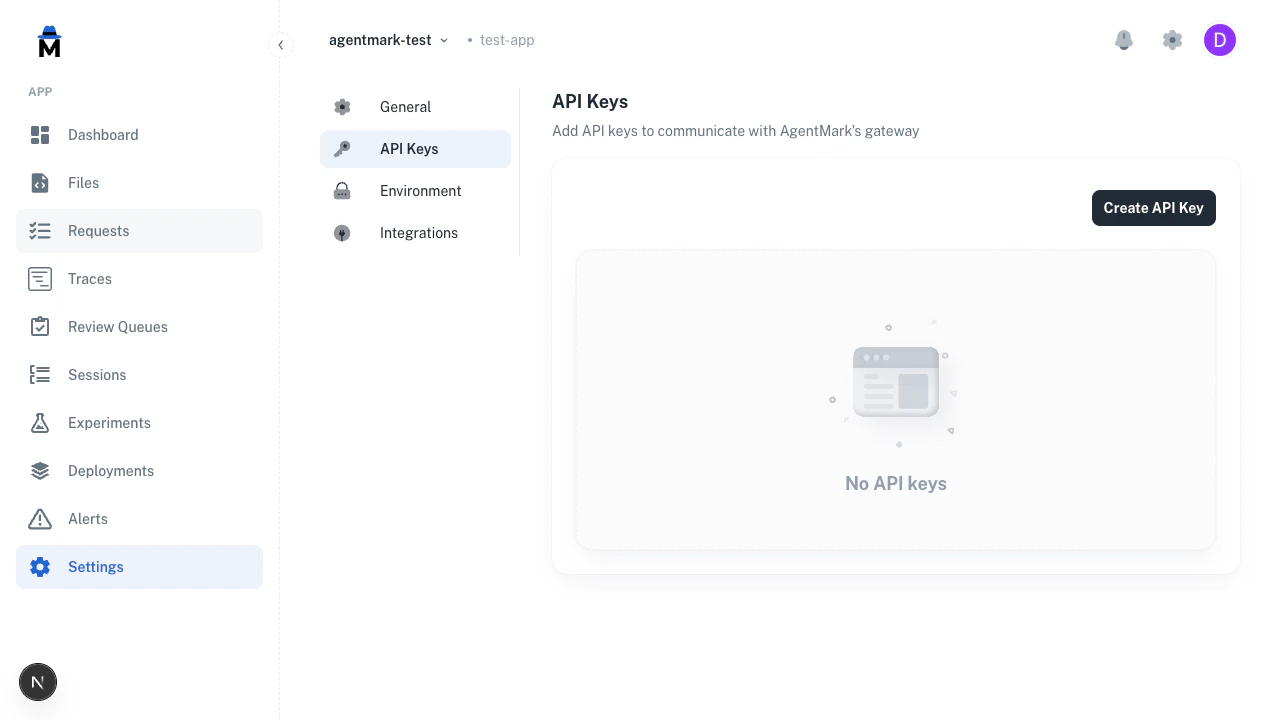
Each key covers only the app and environment shown in the breadcrumb, and the list shows only the selected environment’s keys. A key created here can’t access any other app’s, or any other environment’s, traces, templates, or datasets.
Create an API key
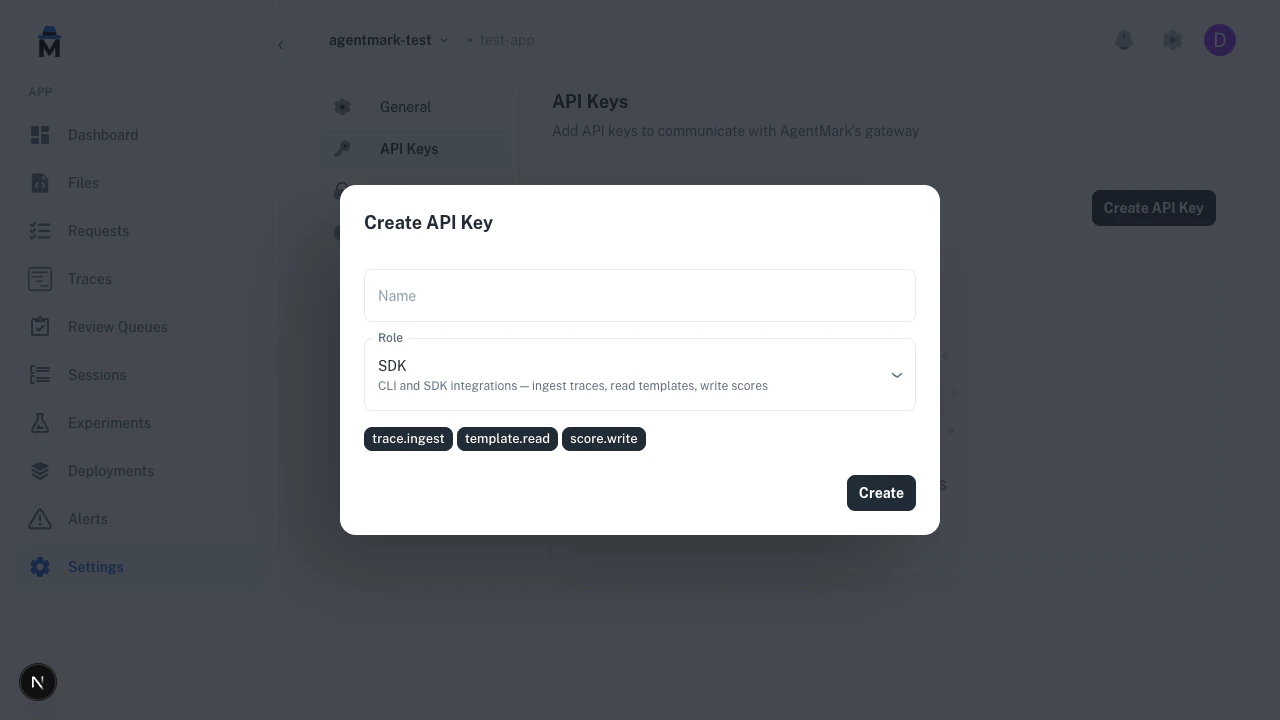
- Click Create API key.
- Enter a Name (used for identification in the list; must be unique within the app).
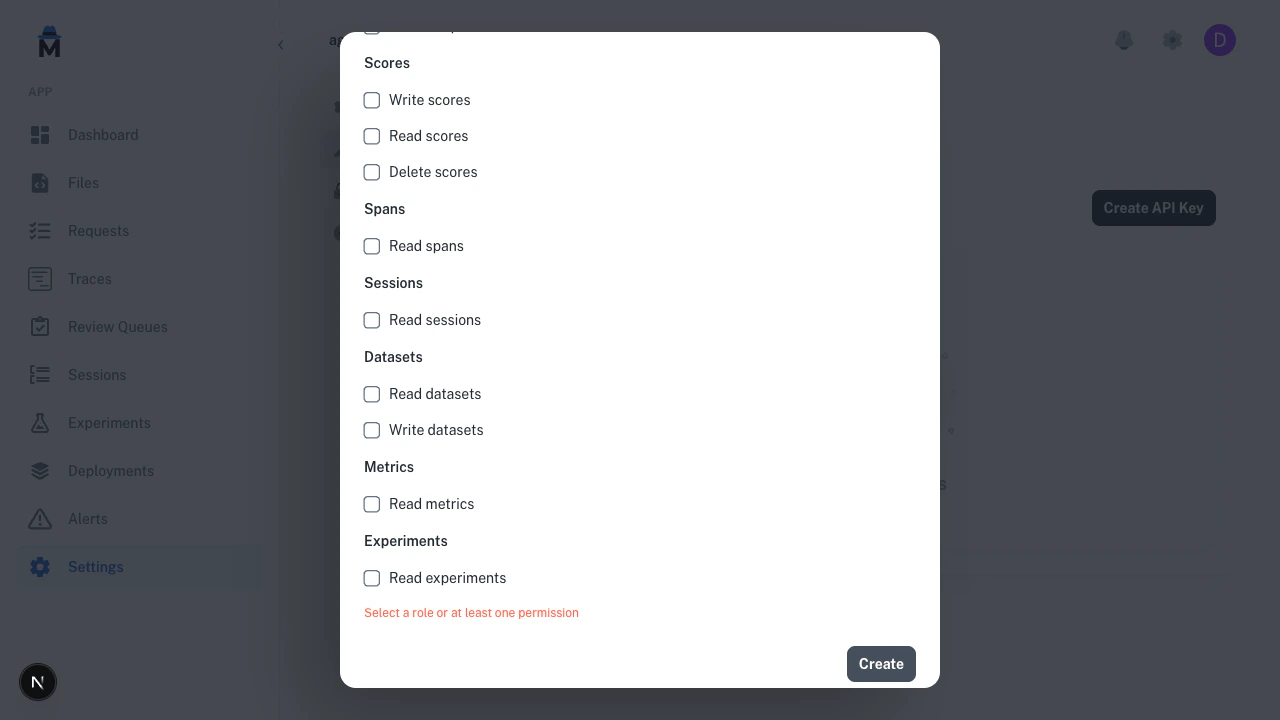
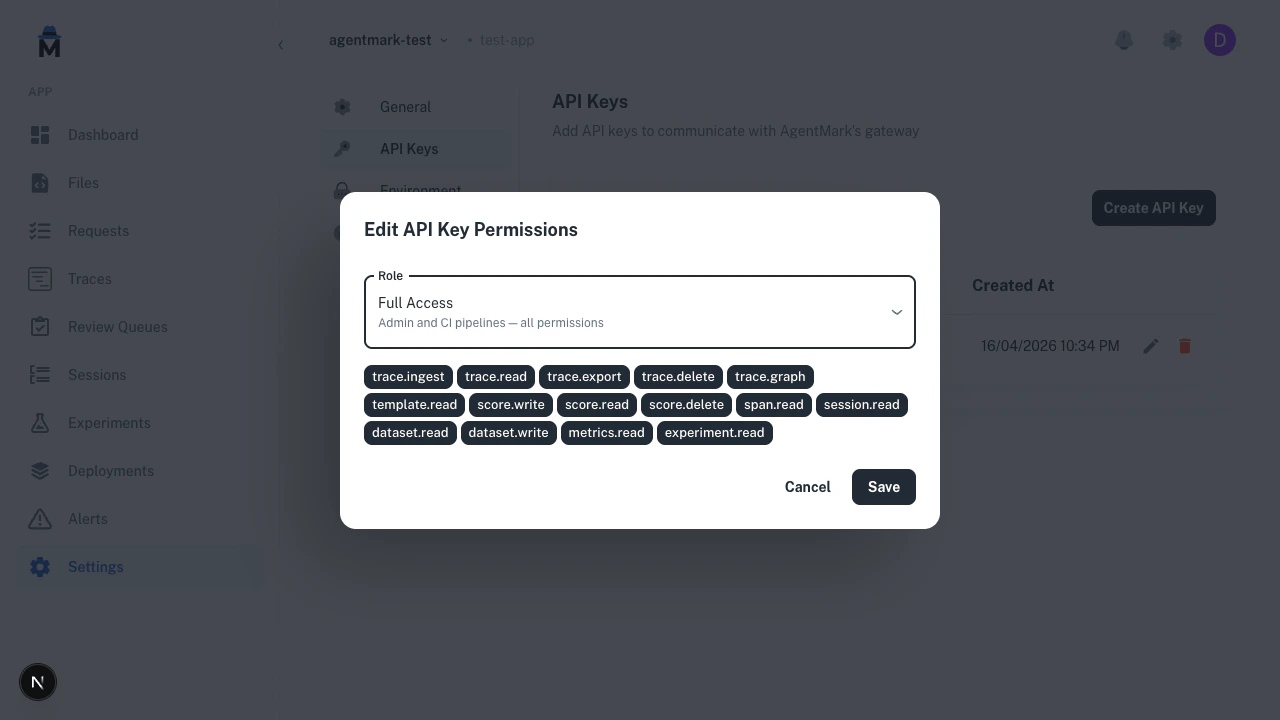
- Select a Role or choose Custom to pick permissions individually.
- Click Create.
Role presets
Three presets cover the common integration patterns: SDK:trace.write, template.read, score.write. CLI and SDK integrations: ingest traces, read templates, write scores.
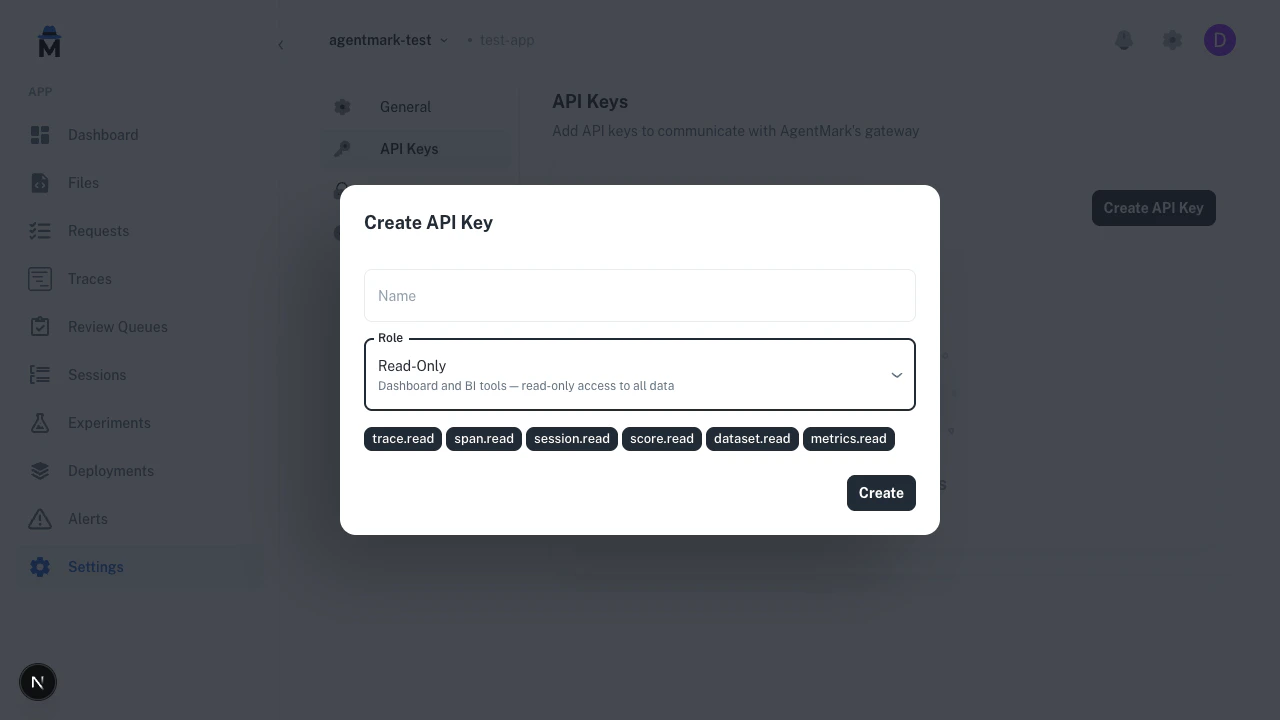
trace.read, span.read, session.read, score.read, score_config.read, dataset.read, metrics.read, deployment.read, environment.read, alert.read, slack_integration.read, app.read. Dashboard and BI tools: read-only access to all data.
Custom permissions
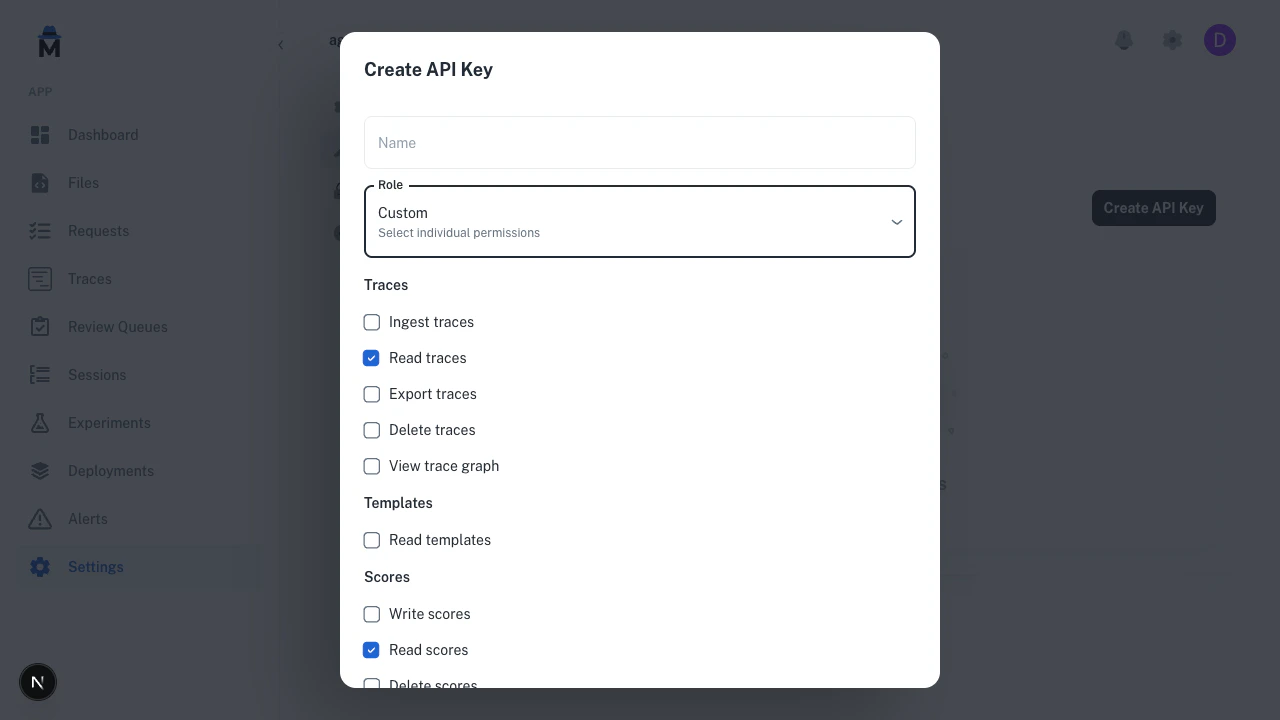
Select Custom to build a permission set from scratch. The form groups permissions by resource (Traces, Templates, Scores, Spans, Sessions, Datasets, Metrics, Experiments, Annotation Queues, API Keys, Deployments, Environments, Alerts, Apps) so you can mix and match. For example, usetrace.read + score.write for a scoring worker, or dataset.write only for a CI job that uploads eval rows.
Copy the key
After you create the key, the Dashboard shows its value once. Copy it now; you can’t retrieve it later.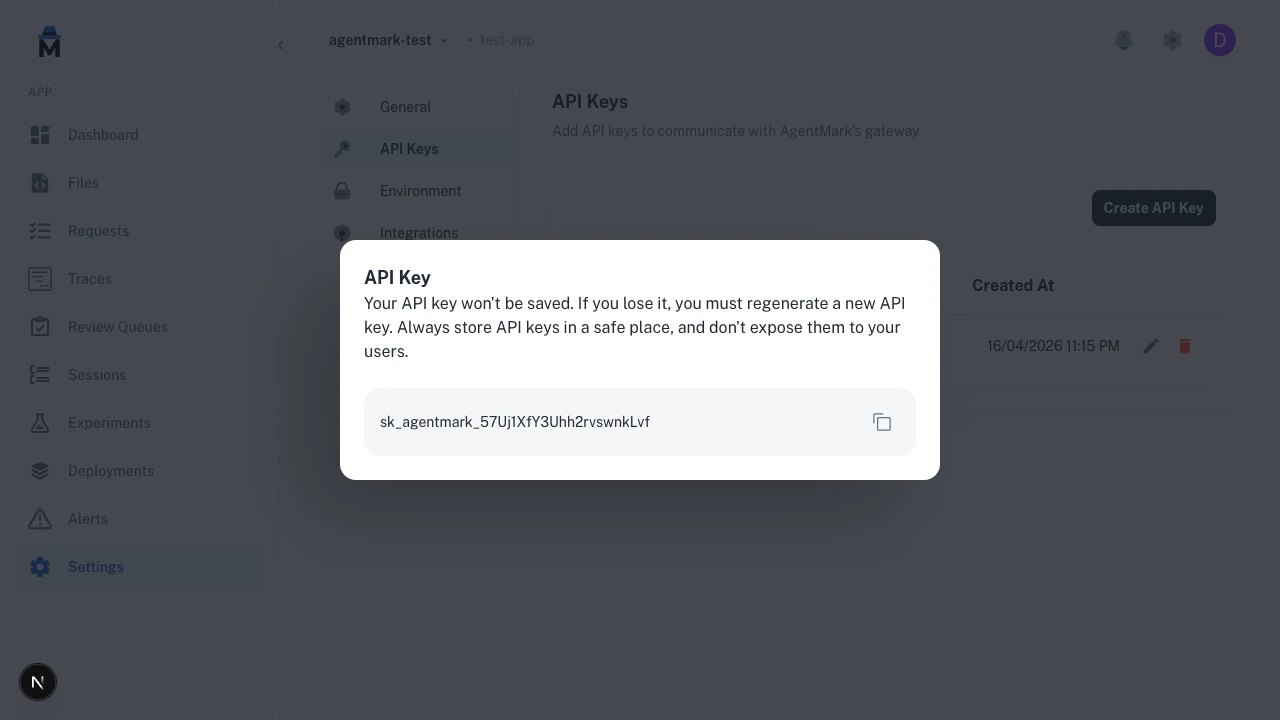
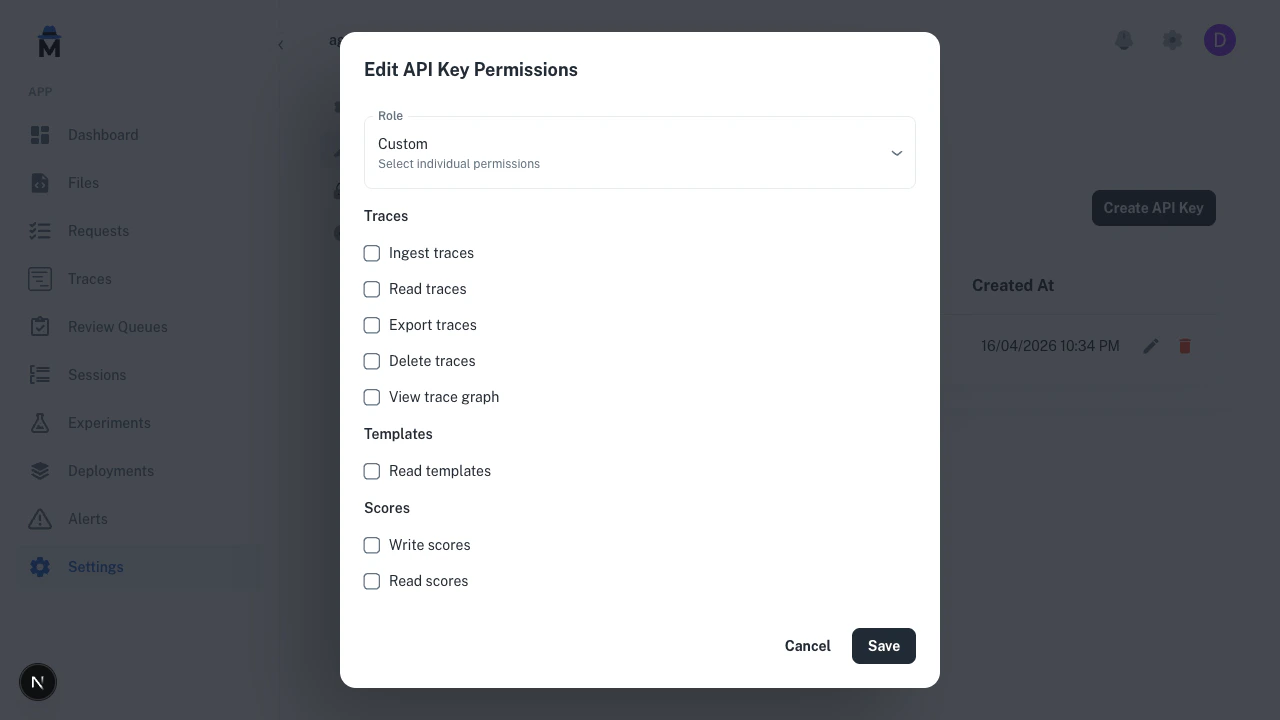
Edit key permissions
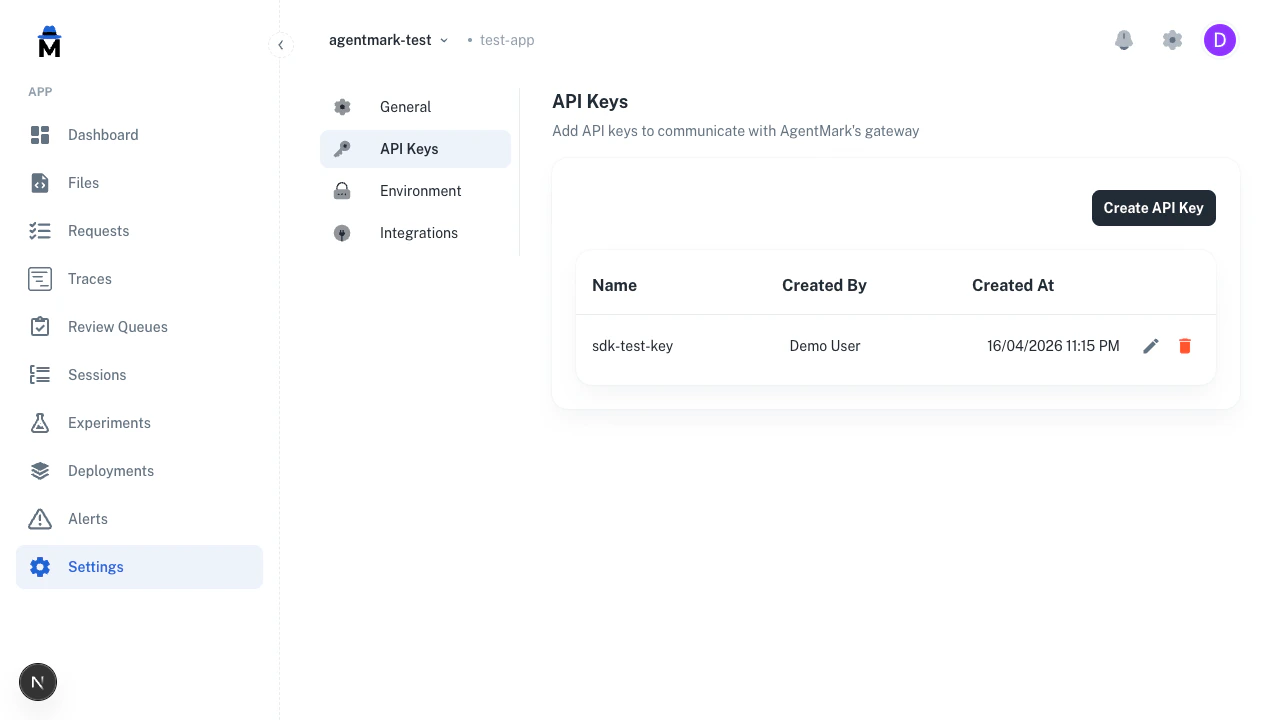
To change a key’s permissions, click the pencil icon next to the key in the list.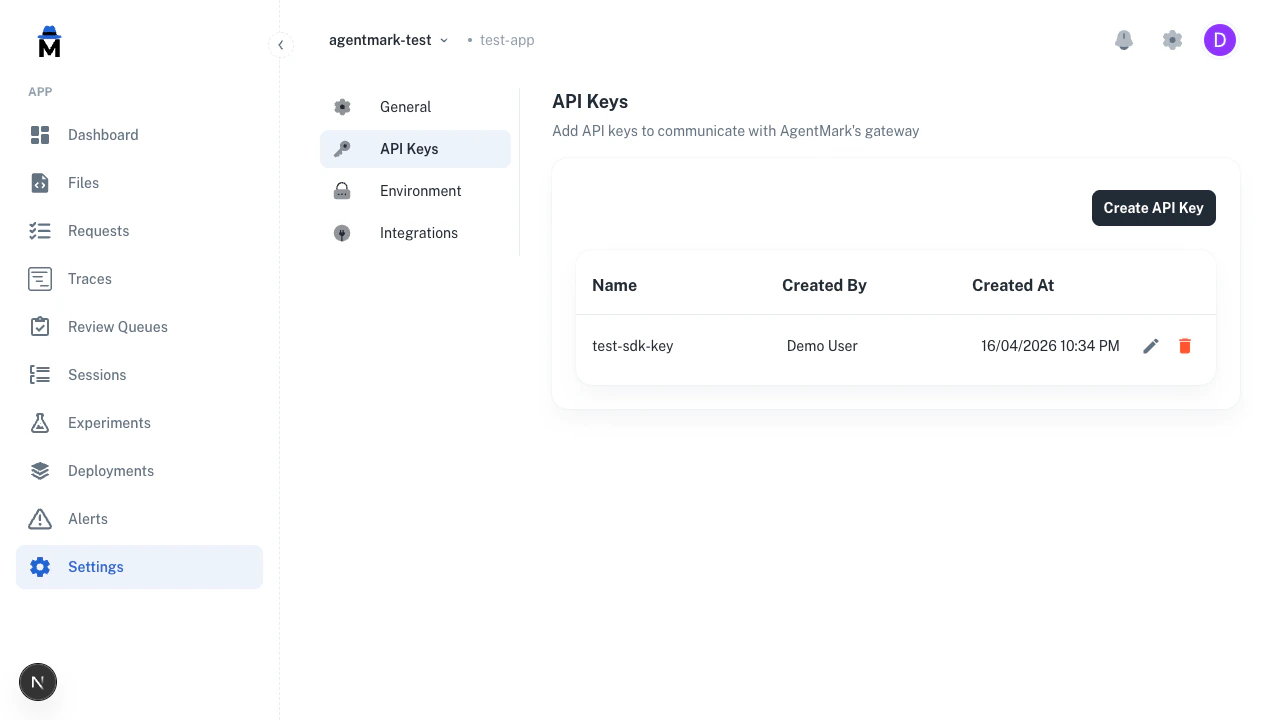
Delete a key
Click the red trash icon next to a key and confirm the deletion.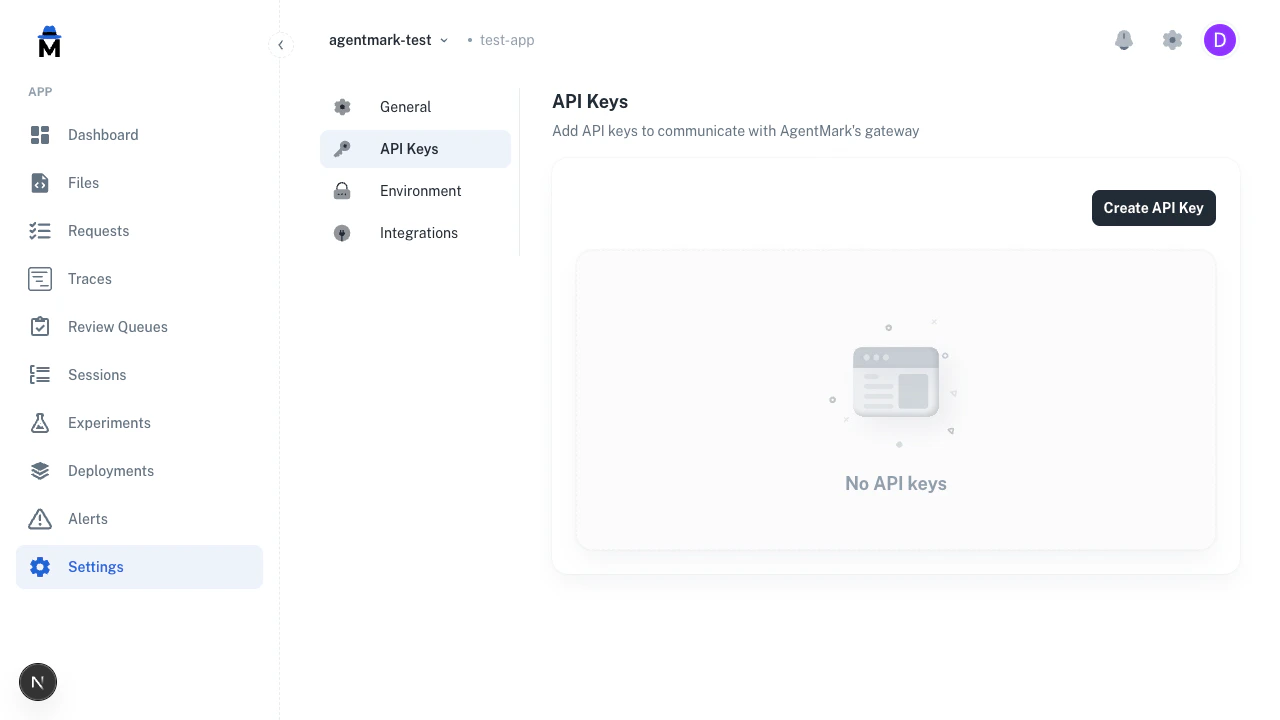
Rotate a key
To rotate a key without downtime:- Create a new key with the same permissions.
- Copy the new value and update
AGENTMARK_API_KEYin your deployment (or secrets manager). - Confirm your application is using the new key (check traces or logs for the expected activity).
- Delete the old key from the Dashboard.
401 gap: the old key keeps working until you delete it.
Related reading
- Authentication: request headers, endpoint permissions, error codes
- Users and access control: permission catalog and role definitions
- Security: how AgentMark stores and rate-limits keys
Have questions?
Reach out any time:
- Email the team at hello@agentmark.co for support
- Schedule an Enterprise Demo to learn about AgentMark’s business solutions